Roku’s home screen is where the magic happens, yet many users never learn how to make it work for them. The default layout—apps scattered like a digital junk drawer—can turn streaming into a hunt for the right tile. But with one button press and a few quick maneuvers, you can rearrange or remove tiles in seconds, putting your most-used apps front and center.
For those who’ve added Netflix, Disney+, and other services only to find them buried under less-used channels, the solution lies in the * button on the Roku remote. Often overlooked, this button unlocks hidden options that let you drag, drop, and delete tiles with ease. Here’s how to take control.
A 30-Second Reset for Your Roku Home Screen
Start by navigating to the Home tab on your Roku device. Use the directional pad to highlight the app you want to move—say, Netflix—and press the * button. A menu will appear with options like Move app or Move app to top. Select the one that fits your goal.
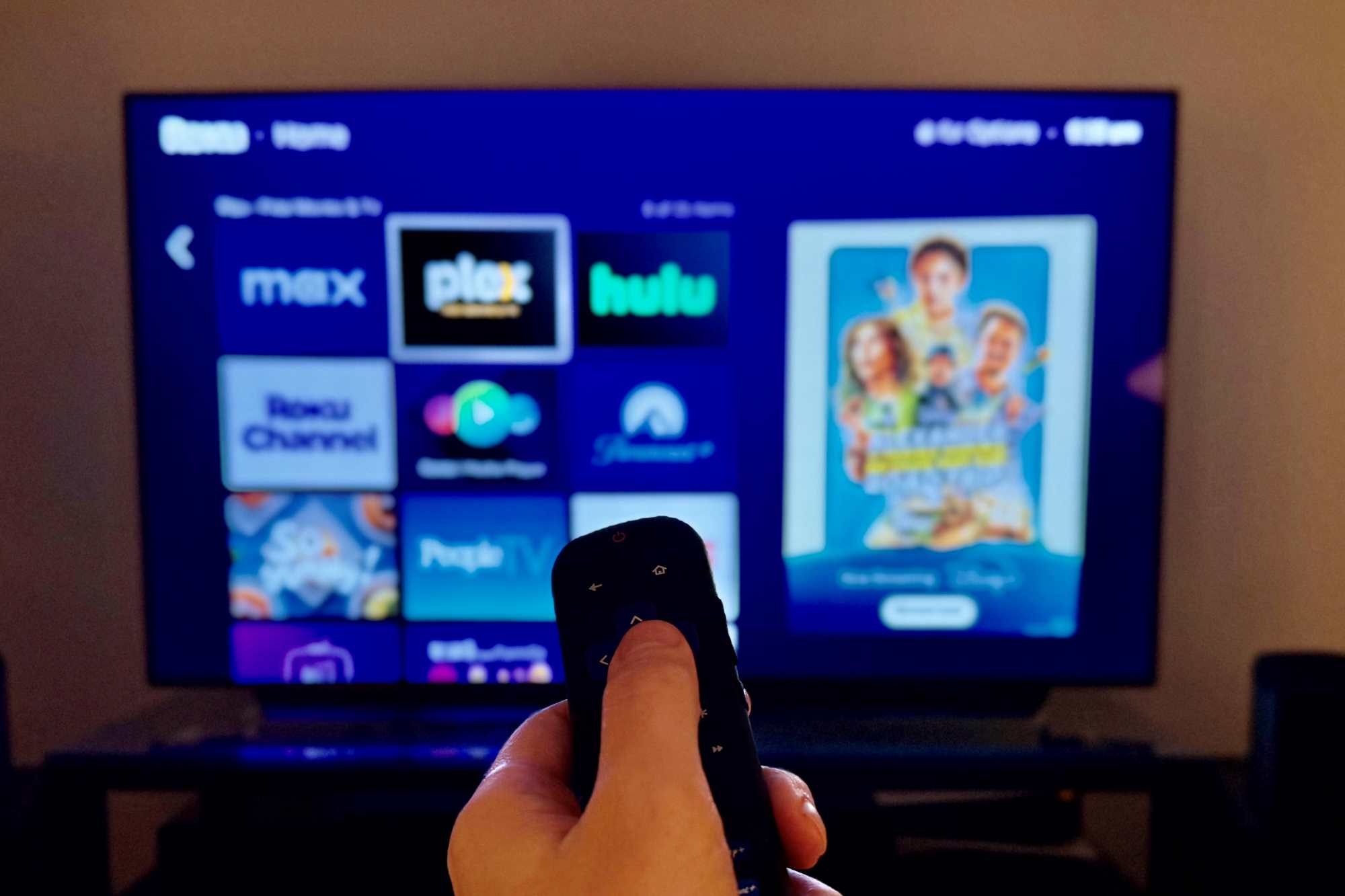
Once chosen, the app will glow with arrows around it, signaling it’s ready to be repositioned. Use the arrow keys to slide it into place, then press OK to lock it in. Repeat for other apps until your favorites occupy the top row or a spot that makes sense for your viewing habits.
Deleting Apps Without Losing Subscriptions
Removing an app from your home screen doesn’t cancel its subscription—so before you delete Hulu or Max, check my.roku.com under Manage Your Subscriptions. If the service appears there, unsubscribe to avoid unexpected charges. If it’s not listed, you likely signed up directly with the provider or through a third party.
To delete the tile itself, highlight the app, press *, and select Remove app. The app will vanish from your home screen, but its data and subscriptions remain intact—ready for reinstallation if needed.
With these tweaks, your Roku home screen can go from chaotic to curated in less time than it takes to queue up a show. The key? Knowing where to look—and which button to press.