A developer’s workstation begins to stutter during complex builds, despite the CPU remaining underutilized. The slowdown isn’t coming from the processor; it’s from the RAM, which has silently reduced its clock speed by hundreds of megahertz without explanation. This isn’t an isolated glitch—it’s a symptom that suggests Windows has reached a point where basic troubleshooting no longer restores stability.
Modern PCs are built to last through countless reboots, but over time, system files fragment, driver stacks swell, and memory allocators lose precision. When the RAM clock speed drops—often by 100 MHz or more without warning—the effects ripple through every task that relies on sequential memory access. Applications that once launched instantly now hesitate, background processes consume more memory than expected, and the system feels heavier with each use.
Confirmed signs of a deeper issue
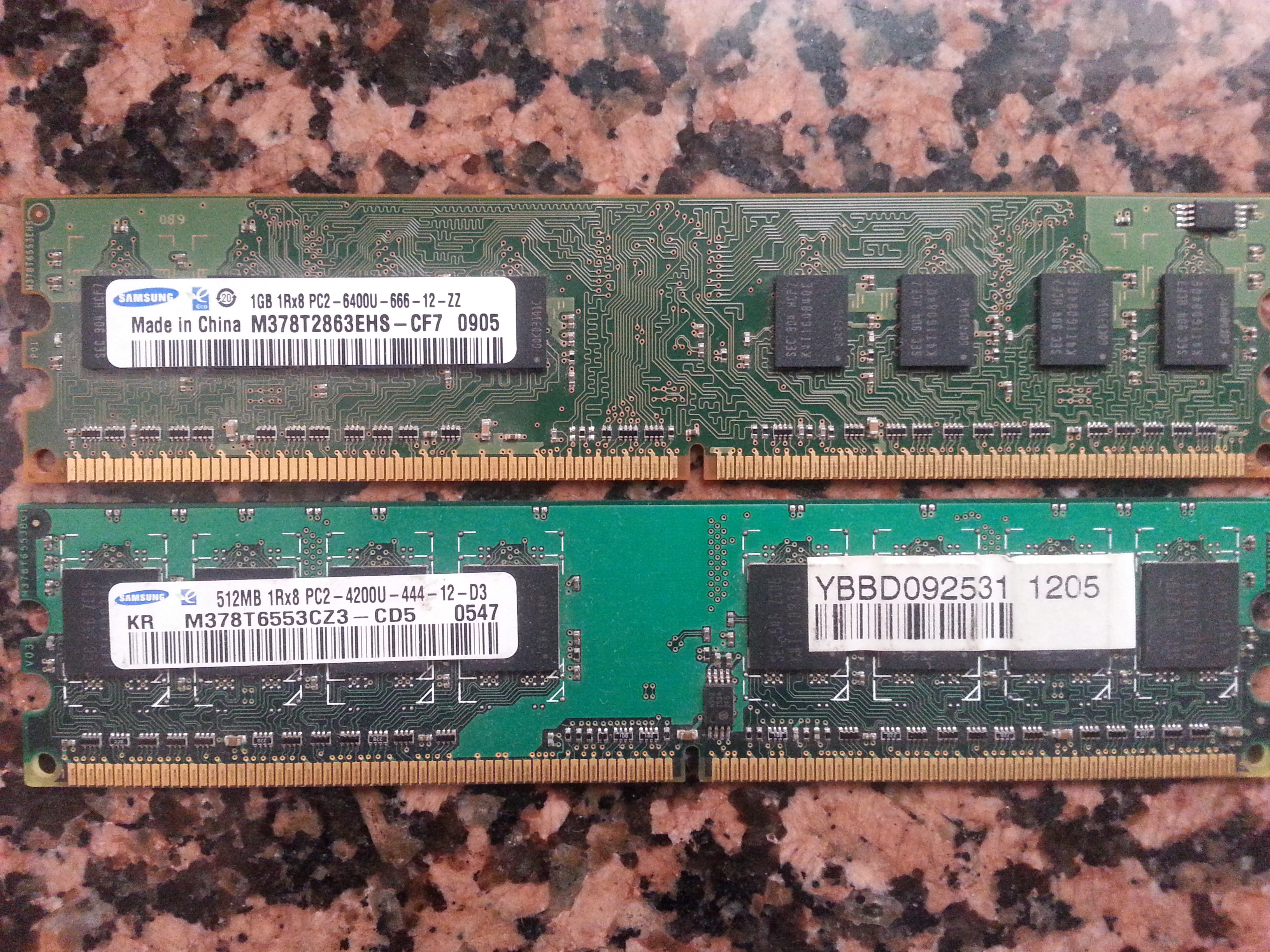
The first clue appears in monitoring tools: the reported memory speed no longer matches the advertised specification. A 3200 MHz DDR4 kit might now run at 2900 MHz, yet the system refuses to revert even after a cold boot. While thermal throttling or power management policies can trigger such behavior, persistent drops without accompanying temperature spikes point strongly toward software instability.
- Applications that previously loaded in seconds now take multiple seconds to initialize, even for lightweight tools.
- Background processes show elevated memory usage, but diagnostics reveal no single application as the culprit.
- The Task Manager’s Performance tab shows clock speeds dropping by 50–200 MHz under load, despite unchanged BIOS settings and active XMP profiles.
These patterns don’t emerge overnight. They accumulate gradually, often after multiple Windows updates or the installation of large software suites that leave behind residual registry entries and temporary files.
The hidden layer of instability
When memory performance degrades without clear hardware faults, the root cause is usually one of three issues: corrupted system state, an over-aggressive power plan, or fragmented data in the Windows kernel’s memory allocator. A restart may temporarily restore clock speeds, but the underlying problem persists. Developers and power users—whose workflows depend on memory bandwidth—are the first to notice these changes because their tasks are highly sensitive to even minor drops in performance.
A full system reset doesn’t mean wiping user data; it means restoring integrity by clearing temporary files, resetting drivers, and rebuilding caches. The process is more thorough than a standard reinstall but far less invasive than a complete OS wipe. While users may hesitate due to concerns about losing configurations or applications, in practice, a reset preserves profiles, documents, and most third-party software.
What isn’t confirmed—and often leads to unnecessary panic—is whether hardware is failing. Memory modules that pass diagnostics but show reduced speed under load can still operate within manufacturer tolerances. The real concern lies in the system’s inability to maintain those specifications consistently, which points back to software, not silicon.
The practical response
If a PC’s RAM clock speed drops by more than 10% without explanation and persists across multiple reboots, it’s time to consider a reset. The drop itself isn’t the problem—it’s the symptom of deeper instability affecting every memory-bound task. A reset doesn’t guarantee an immediate return to full speed, but it clears the conditions that allow clock speeds to drift in the first place.
The solution is simple in theory: instead of enduring gradual degradation, users can restore performance with a controlled cleanup. For those who’ve avoided resets due to fear, the message is clear—instability doesn’t announce itself with warnings; it creeps in through small, persistent slowdowns that only become apparent when they disrupt daily work.